
bizAPIs Documentation
bizAPIs is a solution that assists companies in automating their processes, allowing access to external data such as standards and market information, etc. Moreover, it keeps companies up-to-date with changes, making operations more efficient and secure to make more informed decisions.
This page aims to provide guidance to facilitate the integration process of data coming from our bizAPIs product API and to explain some specific features of the product.
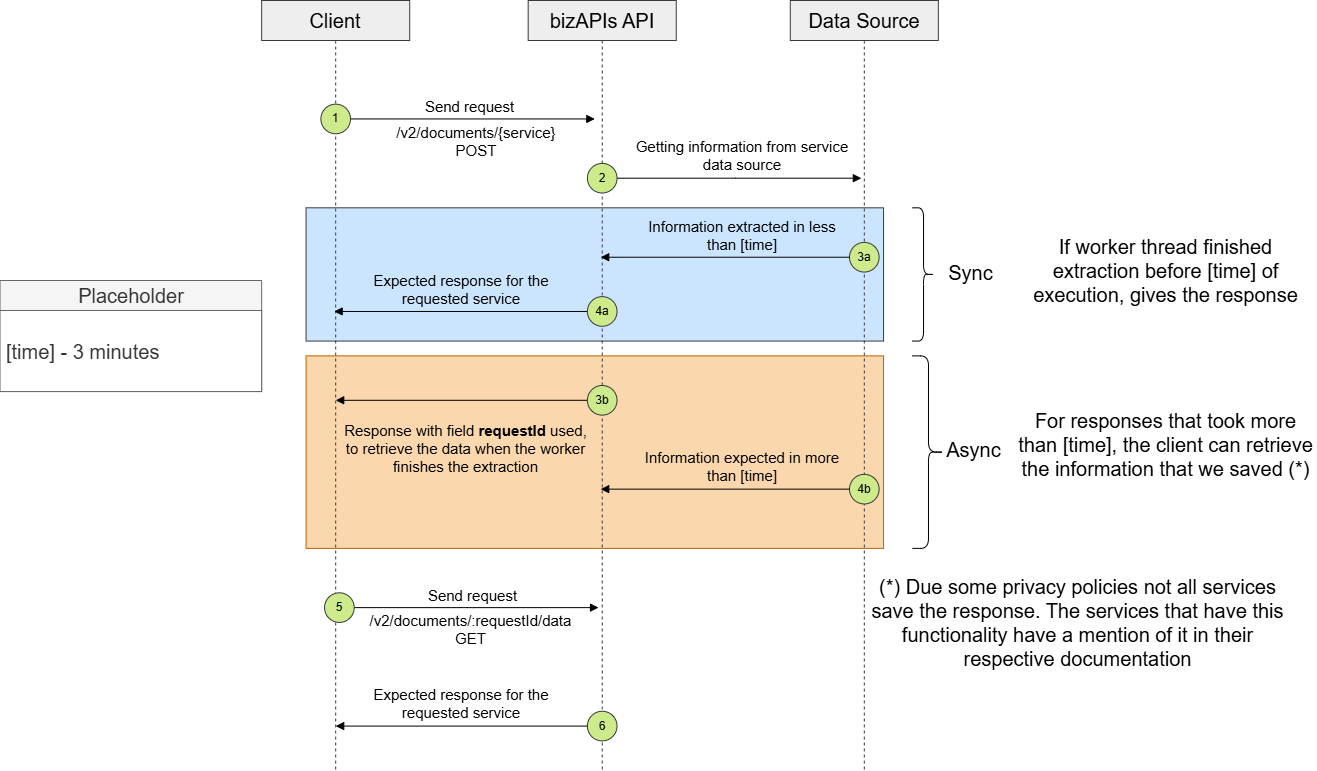
Workflow
Subscriptions (API Key)
To make requests to the bizAPIs API, it is necessary for the developer to have an API key (or, as we call it, a subscription).
The subscription is responsible for identifying the user and persisting information about which services (endpoints) the developer has access to.
Registration for each of the services is individual, and at this moment, the developer has to make a request to our team using this contact form.
Mock data
Most of the services currently have mock data to ensure that developers can perform simulations of the requests during the initial phases of integration with the API, restricting access to real data.
All requests made with the API Key provided in the documentation are solely and exclusively intended for the test data.
If there is an interest in moving to an integration using real data, get in touch with us using this contact form.
Contacts
For more information about the product, you can visit our website, or get in touch with us using this contact form.
How Make a Request
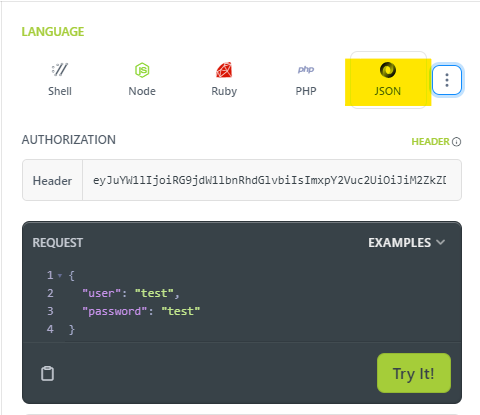
Each API contains essential documentation that provides necessary information about the endpoints, the API Key, parameters, and the available responses.
Test in Postman:

- Set up the URL:
- Select the POST method.
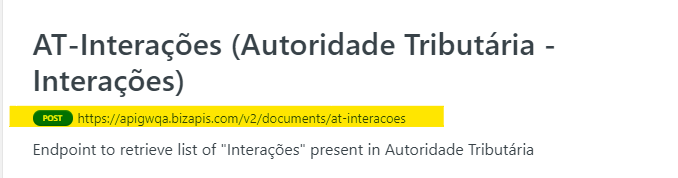
- The specific URL for each endpoint is provided in the documentation for each API. Copy the URL corresponding to the desired endpoint.
- Set up Authorization:
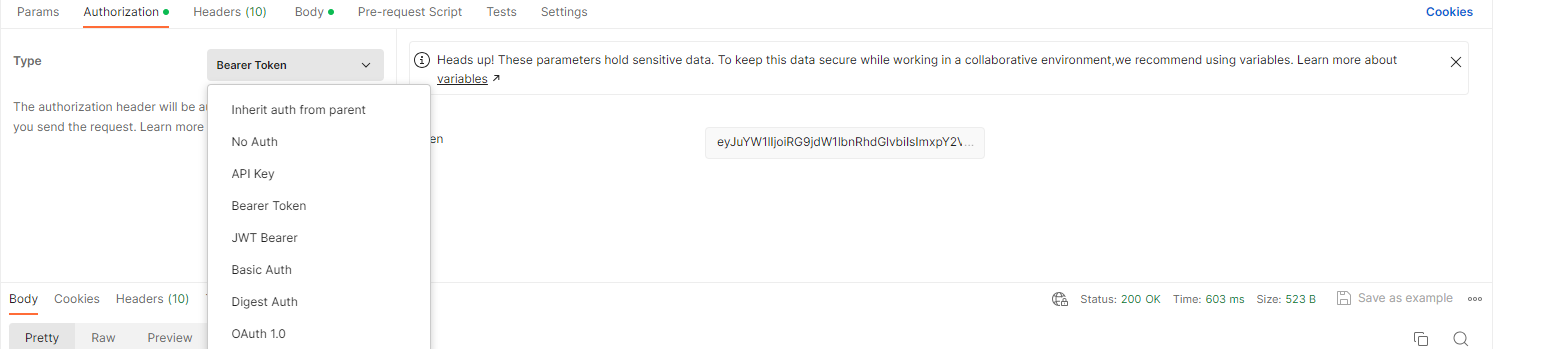
- Go to the "Authorization" tab in Postman.
- In the "Type" field, select "Bearer Token".
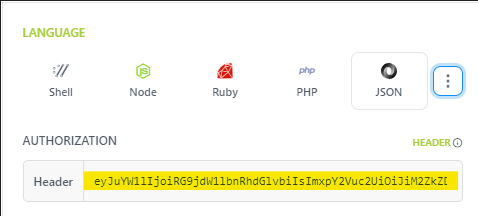
- Paste the API Key into the "Token" field.

- Set up Request Body:
- In Postman, select the "Body" tab
- Choose the "raw" option.
- Ensure the selected format is "JSON".
- Copy the requestBody according to the format specified in the API documentation.
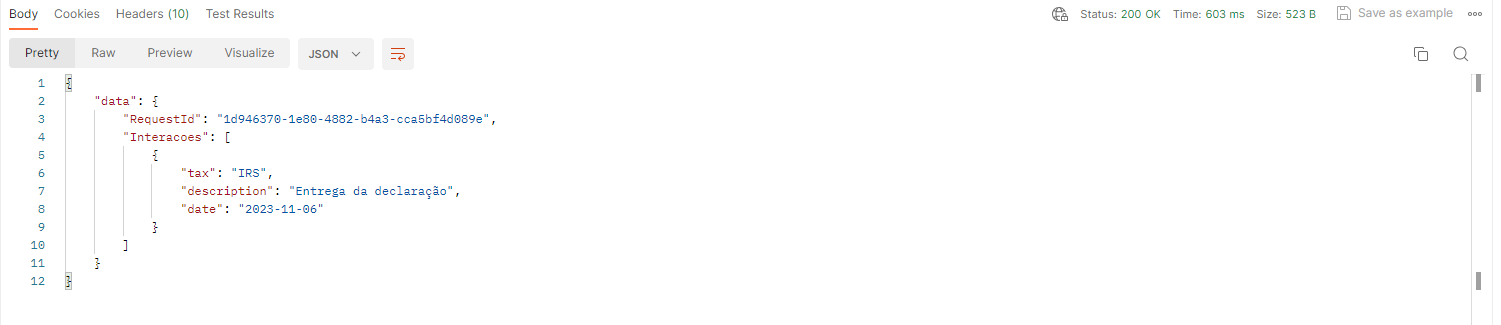
- Send the request:
- After setting up the URL, authorization, and request body, click the "Send" button to send the request to the API. By following these steps, you will be ready to start interacting with the API.
HTTP Status Code
| Status Code | Message Code |
|---|---|
| 200 | OK |
| 401 | Unauthorized |
| 429 | Too many requests |
| 500 | Internal Server Error |
| 503 | Service Unavailable |
| 504 | Gateway Timeout |